Domain SearchInstantly check and register your preferred domain name
 Web Hosting
 cPanel HostingHosting powered by cPanel (Most user friendly)
 KE Domains
 Reseller HostingStart your own hosting business without tech hustles
 Windows HostingOptimized for Windows-based applications and sites.
 Free Domain
 Affiliate ProgramEarn commissions by referring customers to our platforms
 Free HostingTest our SSD Hosting for free, for life (1GB storage)
 Domain TransferMove your domain to us with zero downtime and full control
 All DomainsBrowse and register domain extensions from around the world
 .Com Domain
 WhoisLook up domain ownership, expiry dates, and registrar information
 VPS Hosting
 Managed VPSNon techy? Opt for fully managed VPS server
 Dedicated ServersEnjoy unmatched power and control with your own physical server.
 Website Builder
 Online Store BuilderLaunch a professional e-commerce store without writing code.
 Web Design ServiceGet a custom-designed website tailored to your brand and goals. From just KES 15,600
 BlogRead our guides on web hosting, online business, digital marketing, and more
 SupportOur support guides cover everything you need to know about our services
 ContactContact us via chat or email
If you’ve ever bought web hosting, you’ve likely seen cPanel pop up. At its core, cPanel is a web-based dashboard that lets you manage your entire website, files, domains, emails, databases, and security, without needing technical server knowledge.
It’s not just popular, it’s widely adopted at scale. cPanel has been around since 1996 and today helps power 70+ million domains worldwide, making it one of the most used control panels in the hosting industry.
In simple terms, cPanel takes something complex (server management) and makes it manageable through a clean, visual interface. That’s exactly why it remains a go-to choice for beginners, developers, and hosting providers alike.
Why cPanel is Popular
cPanel didn’t become the industry standard by accident. It’s widely used because it removes friction from everyday website management, from launching your first site to handling multiple client projects.
1) Simple and intuitive
cPanel is built for usability. You don’t need to understand servers, command lines, or configurations to get started.
Tasks like uploading files, creating emails, or installing software are clearly labeled and handled through a visual, point-and-click interface.
For most users, this cuts the learning curve down to hours instead of weeks.
2) Trusted by professionals
Despite being beginner-friendly, cPanel is powerful enough for developers and agencies. It’s stable, rarely breaks, and behaves predictably, something that’s essential when you’re managing live websites.
This reliability is one reason it’s used across shared hosting, VPS, and even some dedicated environments.
3) Consistent interface across hosts
One underrated advantage: cPanel looks and works almost the same, no matter which hosting provider you use.
If you’ve used it once, you can switch hosts without needing to relearn everything. That consistency saves time and reduces mistakes, especially when handling multiple projects.
4) Smooth WordPress integration
cPanel works extremely well with WordPress, the world’s most popular CMS. With tools like Softaculous, you can install WordPress in under 2 minutes, complete with database setup and configuration.
This makes launching a website fast, even if you’ve never done it before.
Key Features of cPanel
To manage your site effectively, you must understand the primary modules within the dashboard:
a) Files & FTP
Manage your website’s source code, upload images, and create FTP accounts for team access.
b) Domains & DNS
Manage multiple domains, create subdomains, and configure DNS records (A, CNAME, MX).
c) Email
Create professional email addresses (e.g., [email protected]) and manage spam filters.
d) Databases
Use MySQL and phpMyAdmin to store and manage your website data.
e) Security
Manage SSL certificates, configure IP blockers, and monitor hotlink protection.
f) Software & Apps
Use “Softaculous” to one-click install WordPress, Joomla, or Drupal.
g) Metrics & Performance
Track visitor traffic using tools like AWStats and monitor resource usage.
These features cover 90%+ of what most website owners need daily.
How to Access cPanel
Getting into cPanel is straightforward once you know where to look. Most hosting providers give you two reliable ways to log in, one through your hosting dashboard and another using a direct URL.
1) Easiest Method: Via Truehost Client Area (Recommended)
This is the smoothest option, especially if you’re just getting started. It removes the need to remember separate login credentials for cPanel.
Steps:
Visit Here
orhttps://truehost.co.ke/cloud/login
Log in using your registered email and password
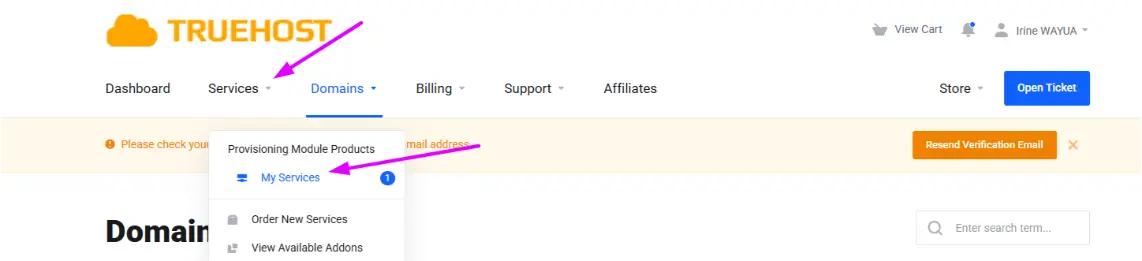
Click Services (sometimes labeled My Services)
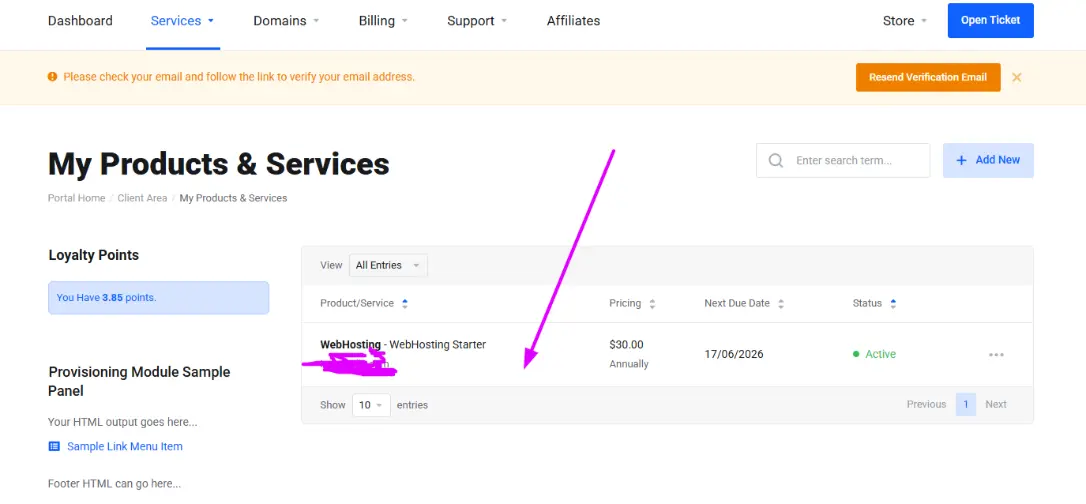
Select your active hosting plan
Click the cPanel button or link
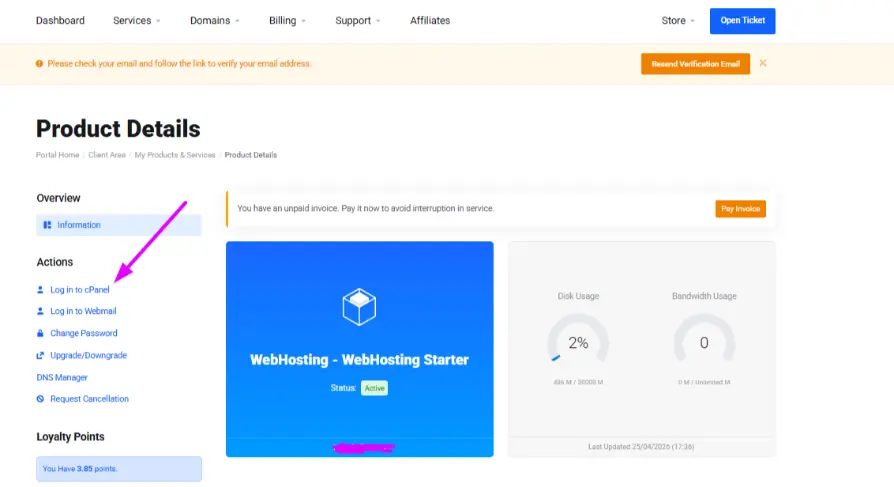
Once you click it, you’ll be automatically logged in, no extra username or password required.
Why this method works best:
- No need to remember cPanel login details
- Faster access in just a few clicks
- Reduces login errors (common with manual login)
2) Direct Login Using cPanel URL
This method is useful when you want quick, direct access or if you’re troubleshooting and can’t access your hosting dashboard.
Common login URLs (replace yourdomain.com):
https://yourdomain.com/cpanelhttps://yourdomain.com:2083(secure port)https://cpanel.yourdomain.comhttps://your-server-ip:2083(useful if your domain isn’t pointing yet)
Steps:
Open your browser
Enter one of the URLs above
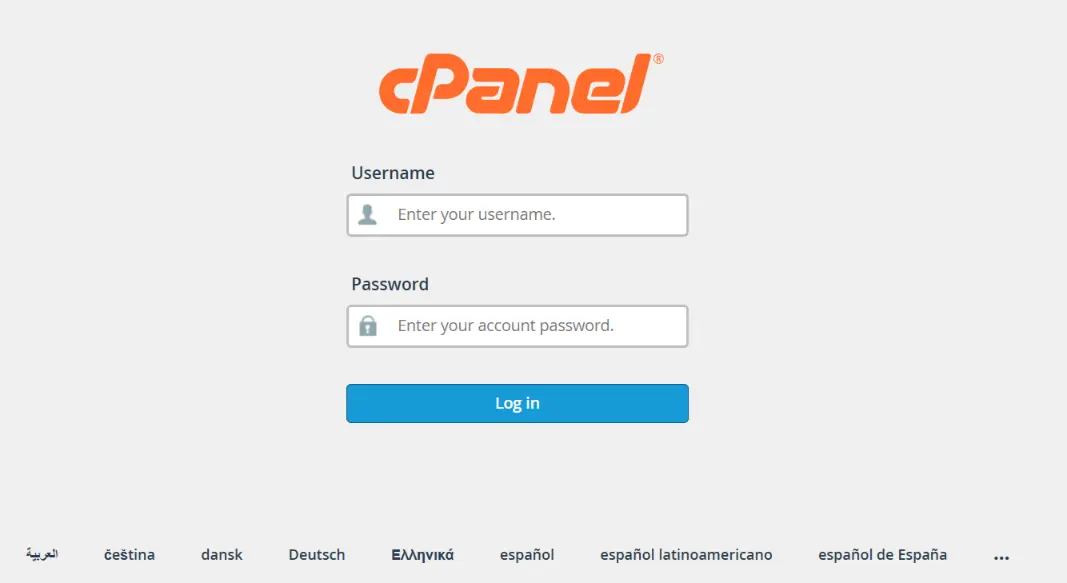
Input your cPanel username and password
Click Log in
How to Use cPanel Effectively
Once you’re inside cPanel, the real value comes from knowing what to actually do with it. Instead of treating it like a dashboard you only “log into,” think of it as the control room for your entire website.
Here’s how to use it properly for everyday website management.
1) Upload Your Website Files
If you’re building a static site or manually managing files, the File Manager is where everything starts.
Inside cPanel:
Open File Manager
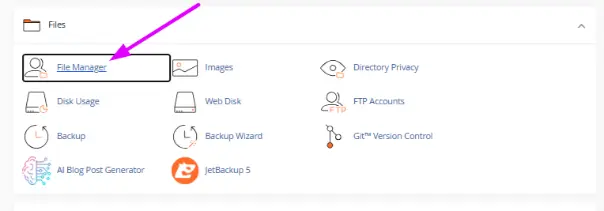
- Go to the public_html folder (this is your website root)
- Upload your HTML, CSS, JavaScript, images, or full project files
- Extract zipped files if needed
Anything placed in public_html becomes publicly accessible on your domain. This is the core folder that powers your website.
2) Install WordPress (or Any CMS)
Most modern websites run on a CMS like WordPress, and cPanel makes installation extremely fast.
Using Softaculous Apps Installer:
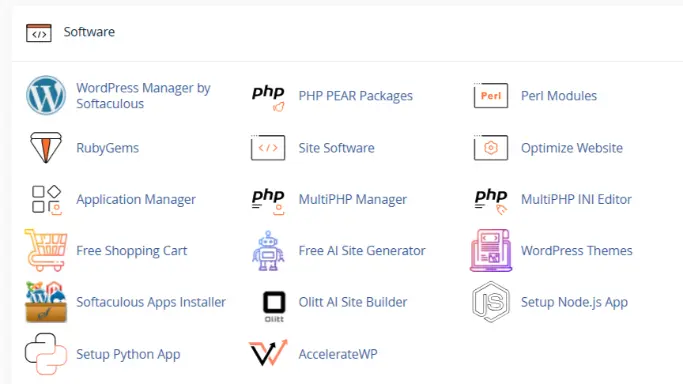
- Open Softaculous from cPanel
- Select WordPress
- Click Install
- Fill in:
- Domain name
- Site name
- Admin username and password
- Click Install
In most cases, your website is live in under 5 minutes, fully configured with a database and admin panel ready to use.
3) Create a Professional Email Address
A custom email improves trust and branding (e.g., [email protected] instead of Gmail.
Steps:
- Go to Email Accounts
- Click Create
- Enter your desired email name
- Set a secure password
After creation, you can:
- Access it via Webmail
- Or connect it to Gmail, Outlook, or mobile apps using SMTP settings
This is especially important for business credibility and customer communication.
4) Connect Your Domain
If your domain was purchased separately, you need to connect it to your hosting.
You can do this in two ways:
- Update Nameservers (recommended)
- Or configure via DNS Zone Editor
After updating DNS:
- Changes typically propagate within a few minutes to 24 hours
- Your website becomes accessible globally once propagation is complete
5) Set Up SSL (HTTPS)
Security is non-negotiable today.
cPanel supports free SSL through tools like AutoSSL or Let’s Encrypt.
Steps:
- Open SSL/TLS or AutoSSL
- Select your domain
- Enable SSL
Once activated:
- Your site switches from HTTP → HTTPS
- Browsers show the secure padlock
- Google gives a ranking boost for secure sites
6) Create and Manage Databases
Dynamic websites (especially WordPress) rely heavily on databases.
Inside cPanel:
- Go to MySQL Databases
- Create a new database
- Add a database user
- Assign full privileges
- Manage everything via phpMyAdmin
This is where your website content, posts, and settings are stored.
7) Back Up Your Website
Backups are your safety net.
Inside cPanel:
- Use Backup Wizard
- Generate full or partial backups (files + databases)
- Download copies to your device or cloud storage
Best practice:
- Schedule regular backups (weekly or daily, depending on traffic)
A proper backup can save you from data loss, hacking incidents, or accidental changes that could otherwise take hours or days to fix.
Cost of cPanel (2026 Pricing)
If you’re buying directly from cPanel:
| Plan | Max Accounts | Price (USD/month) | Best For |
| Solo | 1 | $29.99 | Single site |
| Admin | Up to 5 | $35.99 | Freelancers |
| Pro | Up to 30 | $53.99 | Growing businesses |
| Premier | Up to 100 | $69.99 | Agencies |
| WP Squared | 101+ | $84.99 | Large-scale hosting |
However, on shared hosting (like Truehost), cPanel is included free.
cPanel vs. Other Control Panels
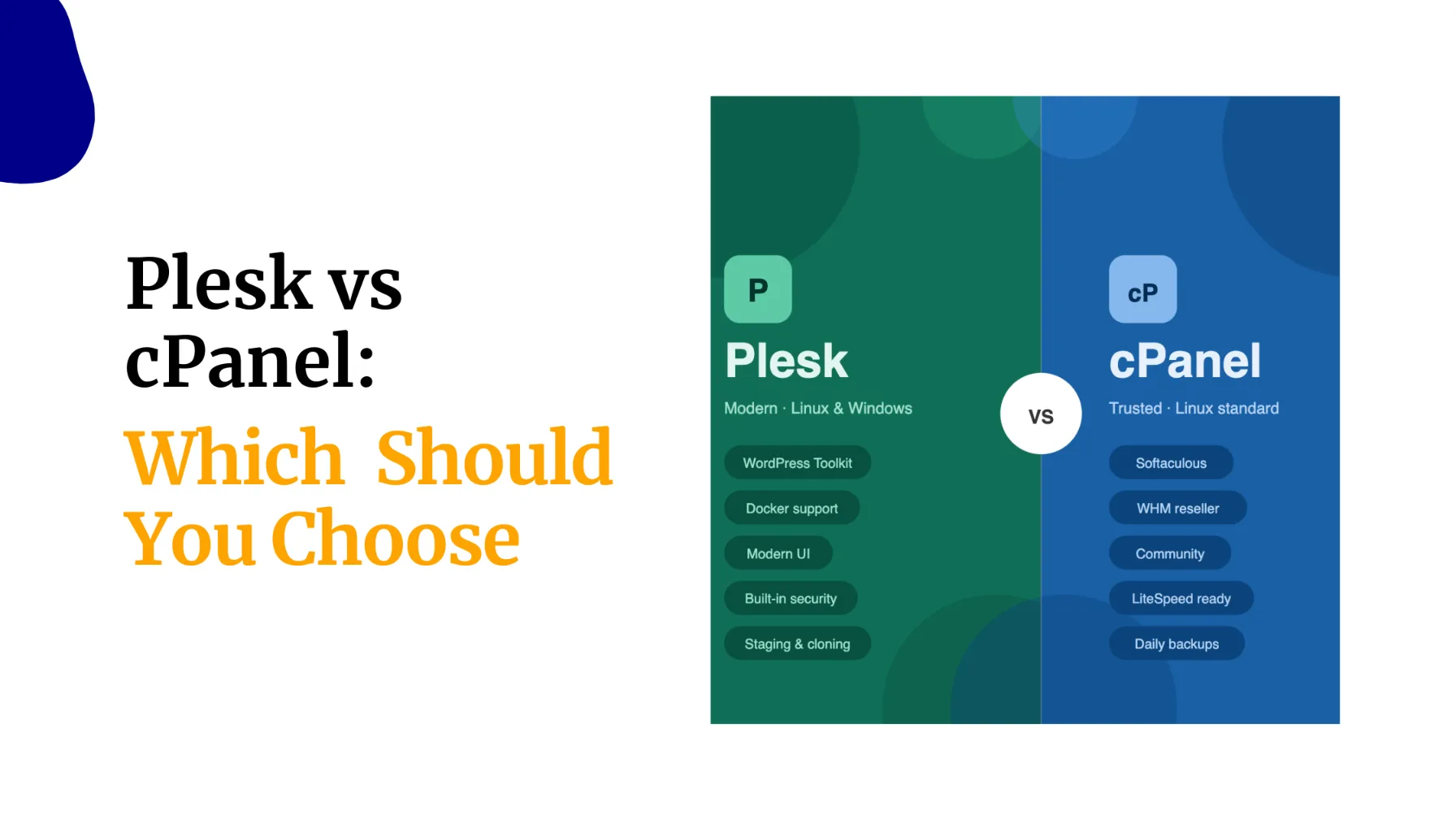
While cPanel is the industry leader, alternatives exist. Plesk is often favored by Windows-based hosting users, while DirectAdmin is known for being lighter on system resources.
Choose cPanel if you prioritize a massive community, extensive documentation, and smooth WordPress integration.
Getting Started with cPanel
Getting comfortable with cPanel really comes down to practice. Once you understand the basics, uploading files, installing WordPress, setting up email, managing domains, and securing your site, you’ve already covered most of what you’ll use daily.
The key is not trying to learn everything at once. Start with simple tasks like file management and email setup, then gradually move into more advanced features like databases and SSL configuration. Over time, cPanel shifts from something you’re figuring out into a dashboard that feels familiar and easy to use.
If you’re looking for a smooth way to get started, choosing the right hosting provider makes a big difference. A good host gives you fast access to cPanel, stable performance, and support when you need it.
Truehost offers affordable hosting in Kenya with free cPanel access, making it easier for beginners and businesses to launch and manage websites without technical stress.
It’s a solid starting point if you want to set up your site quickly and focus on building, not troubleshooting.
FAQs About cPanel
Is cPanel free?
Not exactly. The license costs between $29.99 and $84.99/month, but most hosting providers include it for free.
Do I need cPanel to run a website?
No. But it makes managing your website much easier, especially if you’re not technical.
Is cPanel beginner-friendly?
Yes. It’s designed for non-developers. Most tasks take just a few clicks.
Can I build a website directly in cPanel?
Not from scratch, but you can install tools like WordPress and build your site there.
What happens if I don’t use cPanel?
You’ll need alternative tools or manual server management, which is more complex and time-consuming.